With the release of the new version 1.34.0 of remote desktop software Remotly in September 2025, the developers introduced a game changing feature called multi-join, which allows up to 4 remote users to connect simultaneously to a single host computer. This new functionality completely changes how we work, learn, and play together remotely.
Key features of multi-join:
– Up to 5 participants in one session – 1 host + 4 remote users.
– Seamless shared control – no more conflicts over the keyboard and mouse thanks to intelligent input management.
– Built-in voice chat – perfect for teamwork and real-time communication.
– Gamepad support – up to 4 controllers at once, with flexible configurations.
– Full support in P2P mode or via relay servers, including private corporate servers.
Use cases of multi-join
The multi-join feature is useful in a wide range of scenarios. Multiple administrators or developers can simultaneously control one system to troubleshoot critical issues in real time, greatly accelerating debugging and IT support.
It’s also valuable in education. Participants of interactive courses and workshops can not only observe the instructor but also actively engage in exercises on the same computer, making remote learning more immersive and effective.
Multi-join is very useful when deploying sensitive software or performing critical operations that require 2 or more people to control and approve actions on the same computer together.
Creative teams benefit as well – designers, graphic artists, video editors, or musicians can collaborate on a single project in real time, making changes, providing feedback, and testing results together, even when working from different locations.
Additionally, multi-join enables gaming on a remote host with up to 4 players, opening new possibilities for shared entertainment in the cloud.
How to enable multi-join – step-by-step guide
1. Download and install the latest version of Remotly from: https://remotly.com/download.
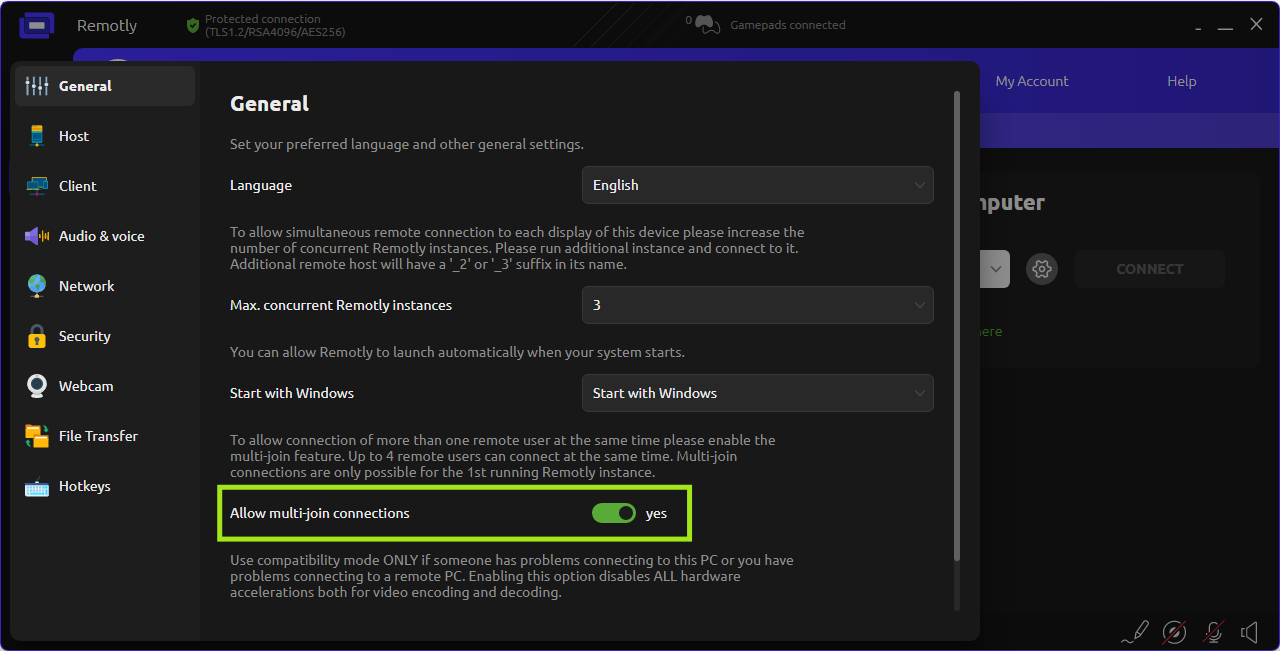
2. Go to Settings -> General.
3. Enable Multi-Join, as it is disabled by default.
4. Invite users via Connection ID or invitations. The connection window displays the number of available slots (e.g., 2/4). Once it reaches 4/4, no more users can join.
Tips:
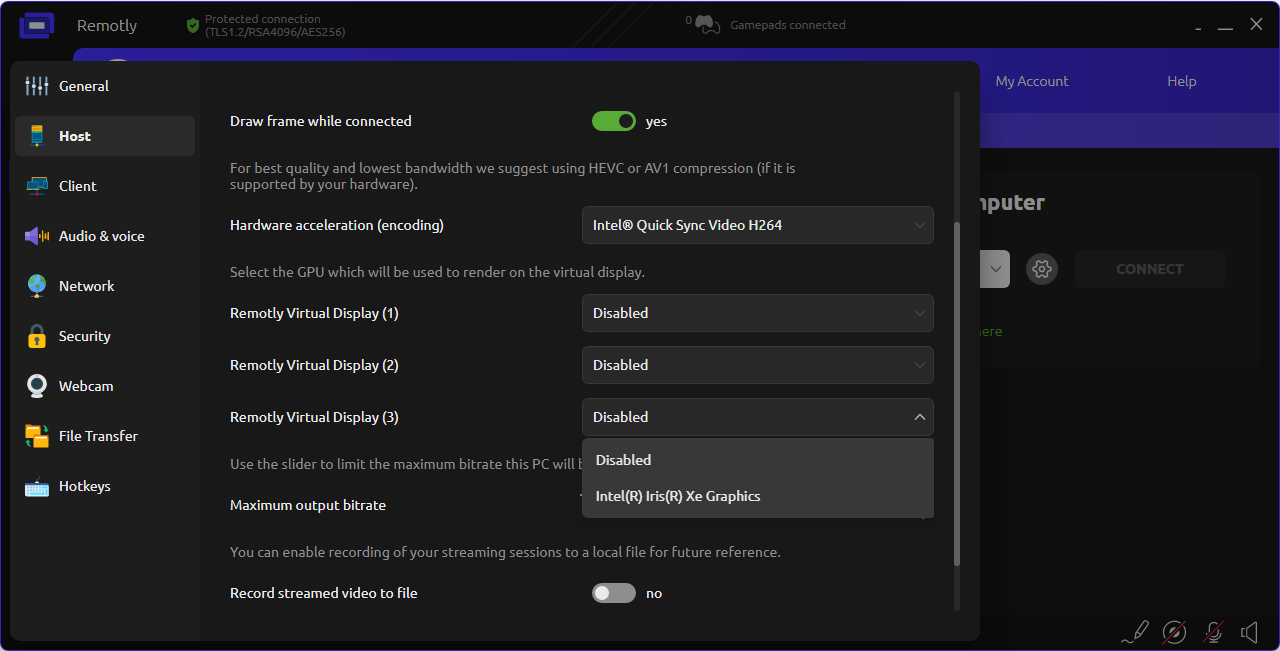
– You can configure video and assign specific GPUs to virtual monitors (Settings -> Video).
– You can log in to one account from multiple devices within a single session.
– To send a file to a specific participant, use the “Send to” context menu.
– The host can share their clipboard with all participants.
– The clipboards of remote users are sent only to the host, not to other participants.
Multi-Join in Remotly is a true revolution in remote work and entertainment. It unlocks new possibilities for collaboration – from complex IT and creative projects to training sessions and multiplayer gaming in the cloud. With this feature, Remotly proves itself as an innovative tool not only for work but also for learning and fun, offering the most interactive remote access experience on the market.
Got a question? Ask our support team on the Remotly community forum: https://community.remotly.com/threads/remotly-pc-v1-34-0-the-biggest-update-this-year-comes-next-week.262/.
Want to test a commercial license? Contact us at: https://remotly.com/contact.
Author: Mirillis Team