What Is DirectX Diagnostic Report?
If you spend any amount of time working at your computer, you may well have come across the DirectX diagnostic tool, or Dx diag, and you may not be familiar with what this programme does or why it can be useful. DirectX was a programming solution designed for Windows 95 to ensure that games and other media would run effectively, and it is utilized by Microsoft up to the present day.
Put simply, DirectX is used when trying to handle multimedia on Windows. The term refers to a collection of application programming interfaces, which work together when you’re trying to do something which involves different kinds of media, such as videos or computer games. It ensures that the programmes can access all the relevant media so they don’t crash or glitch. For example, when your newest computer game boots up and starts running, it’s calling on information from the video card as well as the sound card, and both need to be in fully working order for the game to function.
The diagnostic tool gives you all sorts of information about DirectX and the relevant interfaces, which lets you test why things might not be working, and helps you with troubleshooting problems.
Why Do I Need Dx Diag Report? 
The Dx Diagnostic Report is very useful when things start going wrong with the programme(s) you’re trying to run. It can help you test different features and look at the areas in which problems might be arising. For example, if the issue you’re encountering is caused by an audio problem, the Dx Diag. Report is one of the best ways to effectively diagnose this, and to work out what part of your audio system specifically is at fault.
How To Use The DirectX Diagnostic In Windows
Getting to the diagnostic programme is simple: clicking on the Start menu, typing “dxdiag“, and then pressing Enter should open it straight away.
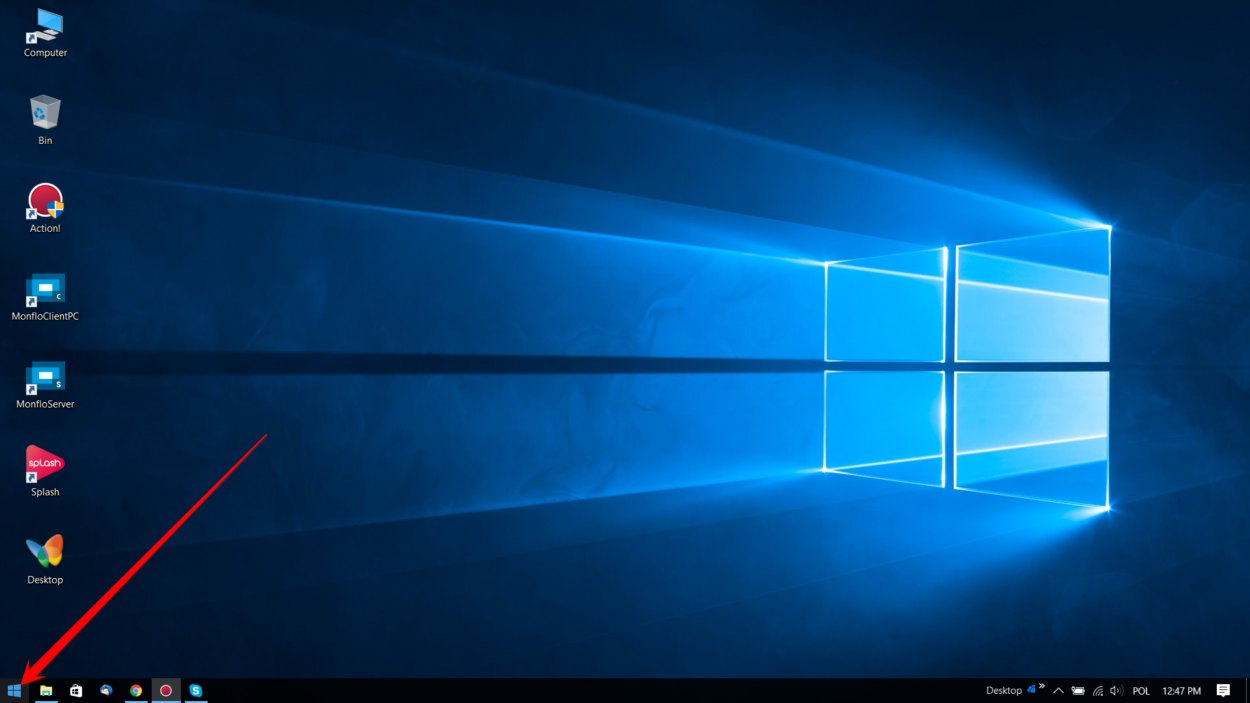
How to create Dx diag report
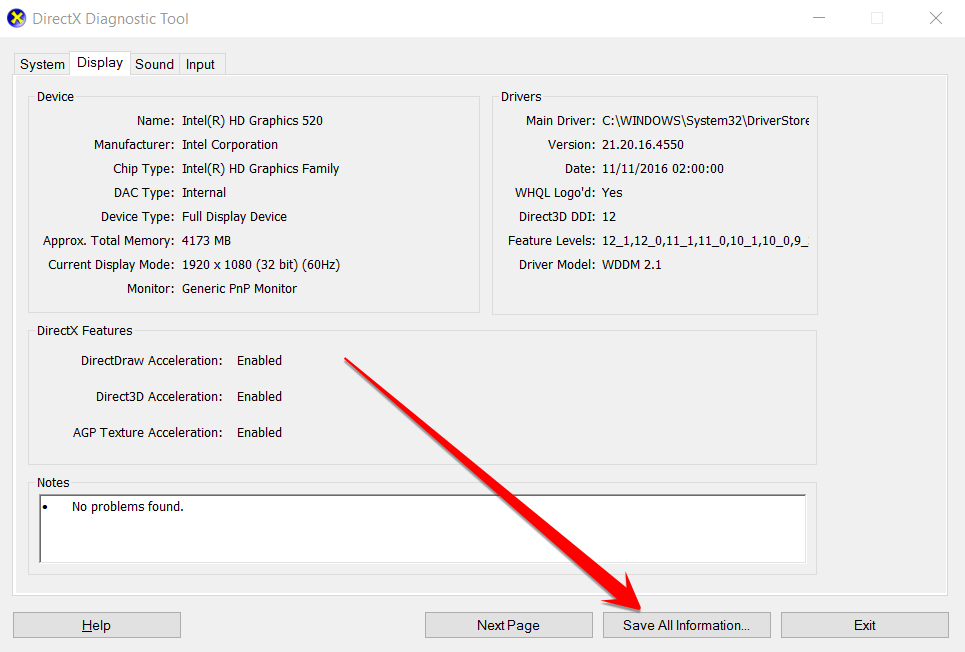
On its first opening, it will ask whether you want to verify that your video drivers have been signed by Microsoft; it’s fine to click yes here, as it won’t make any changes, but will let you know one way or another. You will see a tabbed dialogue box, which allows you to click through options such as display, sound and others.
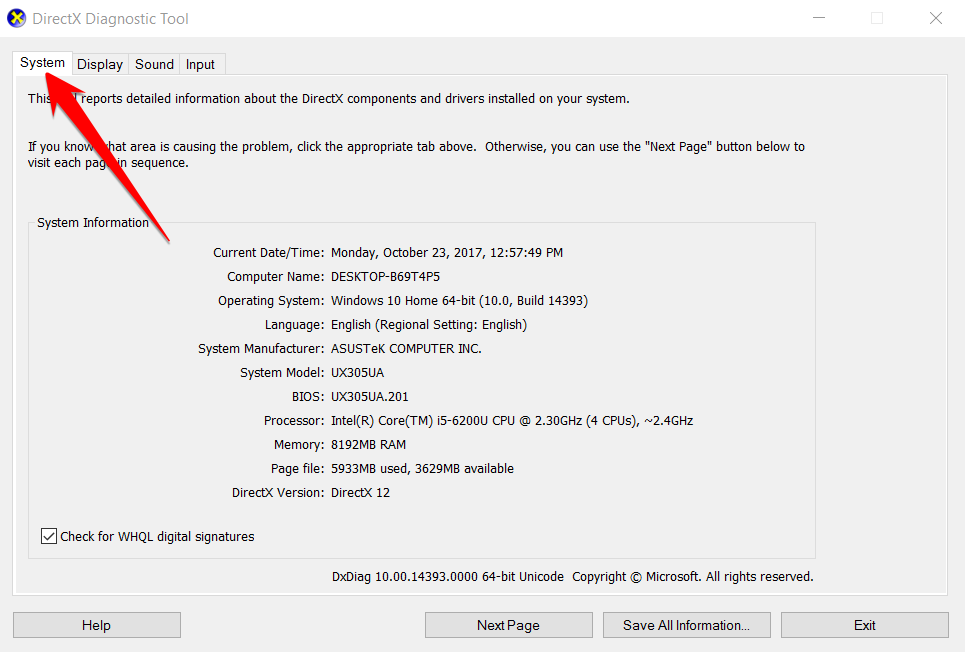
By running through these, you should be able to get detailed system information and diagnose any issues which you’re having. You can click to test the different areas, and the system will search for issues and let you know if it finds any.
What Problems Can Be Solved Thanks To DX Diag. Report?
Dx Diag Report is designed to help you find issues with programmes using multimedia. The issues could be with sound, graphics, your video card, or anything else. Because it covers such a wide range of things, including hardware and drivers, it can be extremely useful in diagnosing any issues with multimedia programmes, and can tell you whether it’s a hardware or a software fault, so you don’t waste time and money replacing parts when the software is at fault, or vice versa.
Author: Mirillis Team