Sometimes when you surf around the Internet you tend to register on certain sites and immediately save the password when you are using your Chrome Internet browser. Then one day you would like to register on another website using the same password but you can’t do that since you’ve hastily made the passwords for previous websites and now you have problems with remembering it. Perhaps you have hastily saved one of your important passwords on a device that isn’t even yours, or the password you have saved on Chrome is not the actual password you needed to log in, yet you still saved it on Chrome. In this short guide we will describe how to manage your passwords saved in Chrome.
Let’s get to the details:
Where to find saved passwords in Chrome?
In order to find passwords that are saved on Chrome, follow those simple steps:
- Click on Customize and control button in your Chrome browser
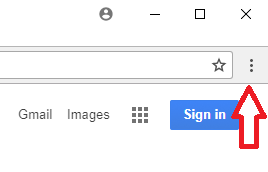
- Then click on settings
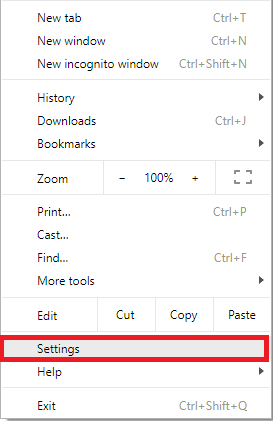
- With new tab opened, scroll entire way down and click on ‘Advanced’

- Afterwards, look for ‘Passwords and forms’ section and click on ‘Manage Passwords’
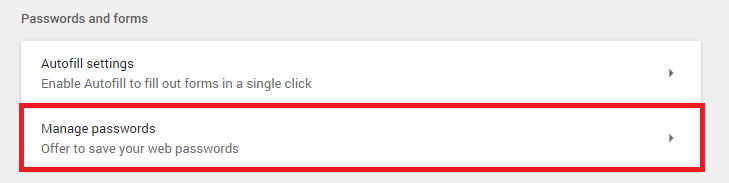
- Search website for which you have saved the password you need to remind

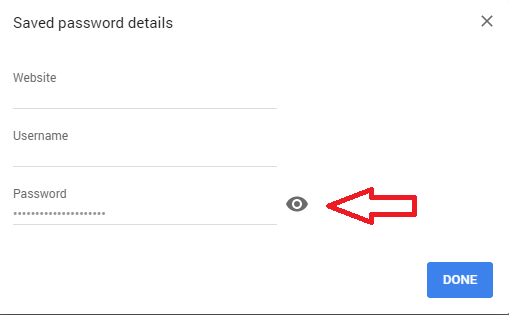
- Click on 3 dots on the right side and then click on ‘details’ and then click on the ‘eye’ button to reveal the password. (If you have a password set on the machine, it will ask you to provide it first).
How to remove saved passwords in Chrome
In order to remove passwords that you have saved in Chrome, follow first 5 steps of previous part.
Instead of clicking ‘Details’ click on ‘Remove’. Your password will no longer be saved on this device.
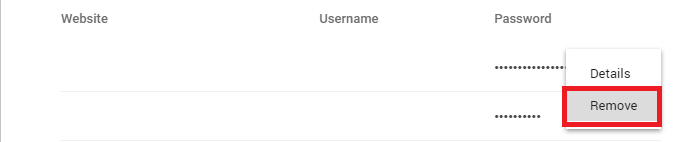
Alternatively it is possible to remove passwords differently, if you do not have access to computer’s password. Follow these steps:
- Click on Customize and control button in your Chrome browser
- Click on ‘history’ tab and open history of your browser (or simply click CTRL+H with just opened browser)
- On the left side choose option to ‘clear browsing data’. Now window will appear. On a new window, tick ‘passwords’ and on the upper part of the windows select the date when you have included your password that you want removed.
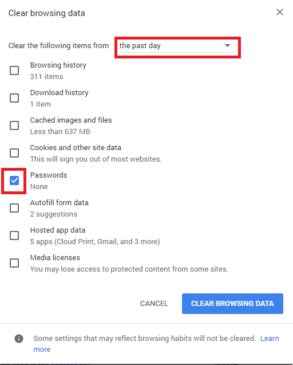
(note) If you select to clear the browsing data from ‘the beginning of time’, you will remove all passwords saved on the browser. Make sure they are not important, especially if you are not working on your device.
How to update passwords that were incorrectly saved in Chrome
Updating already saved password is very easy. Once you log in again into the site that you have saved incorrect password, the Chrome will prompt you with a question whether you want to update the password.
Alternatively, you may remove the password following the steps included above and then try to log in again and accept newly saved password.
There you go, hope this simple guide helped you fix your problem. For more blogs, how-to’s and tips visit our other blogs.
Author: Mirillis Team