Privately, we most often use remote desktop when our loved ones need help with their computers. However, there are many more ways you can make use of remote desktop in your home. Below, we present 11 use cases, including some less conventional ones. You don’t need to spend any money to try them – just download the free Remotly software from here https://remotly.com/download and check it out.
1. Provide Technical Support to Family and Friends
If you’re often the go-to tech person in your family, especially for older relatives, chances are you’ve found yourself helping loved ones troubleshoot their computers. With remote desktop software, you can quickly diagnose and fix technical problems without physically accessing their devices.
Your relatives can easily launch the app and share their screen with you. All they need to do is download the app from Remotly’s website (https://remotly.com/download) and install it. They don’t even have to register or create an account. Once installed, they simply provide you with a unique, ultra-secure connection code, visible in their app, and accept your incoming connection.
For safety and clarity, make sure to agree on the time of the session and let them know the email address you’ll use to connect so they’ll recognize it’s you. The app also features voice chat, so you can explain your actions during the session.

2. Check the Progress of Ongoing Tasks on Your Computer via Your Phone
Remote desktop isn’t just about PC-to-PC connections; it also includes a mobile app (available to download from Google Play) that offers the same functionality as the desktop version. This means you can access your personal or work computer at any time from your phone.
For example, if you’ve started a complex computation or data analysis on your remote computer, you can check the progress and results directly from your phone. Similarly, if you’re installing software or updating your operating system, the app allows you to monitor the process. By enabling the “Start with Windows” feature in the app’s settings, the connection will automatically re-establish after a reboot, even from the login screen.
3. Access PC Files and Applications That Don’t Work on Android
Need to access important files on your phone or send a document stored on your computer? You can connect to your PC from an Android phone and retrieve files that aren’t in the cloud or run programs that don’t work on Android. This is especially useful for technical software, PC games, local office suites, and system tools.
Here’s how it works: Leave your computer in sleep mode and use the Wake-On-LAN feature to wake it remotely. If your computer is locked, you can unlock it remotely, provided you’ve enabled the “Start with Windows” option in the app’s general settings.

4. Avoid Firewall Issues When Making Transfers Abroad
If you’ve traveled abroad, you might have encountered issues making bank transfers due to geographical restrictions or firewalls. Some banks don’t offer advanced mobile apps, and transfers initiated from a device in certain locations might get flagged as suspicious.
To avoid these problems, perform the transfer remotely using a computer left at home. By connecting to your home computer, which uses a local IP address, you can complete transactions without triggering security blocks. For added security in unattended mode, you can lock the remote keyboard and dim the remote PC screen during the session.
5. Watch Movies Remotely
Not every mobile device can display a video in good quality. With Remotly, you don’t have to worry about whether your mobile device meets all the technical requirements. The Remotly application allows you to stream videos from your computer, utilizing its power.
The application allows you to stream content in high-quality 4K with full HDR support. This ensures a smooth viewing experience while energy-saving technology prolongs your device’s battery life.
6. Play PC Games on a Friend’s Computer
Want to test a new game on your friend’s computer, or take advantage of their high-performance setup? With remote desktop software, you can stream games from their computer.
Remote desktop software Remotly offers high-quality streaming at 120 FPS in 4K with HDR and minimal latency. You can connect your preferred game controller, keyboard, or mouse and enjoy the experience as if you were physically at their PC.
7. Play PC Games on Your Phone Anytime
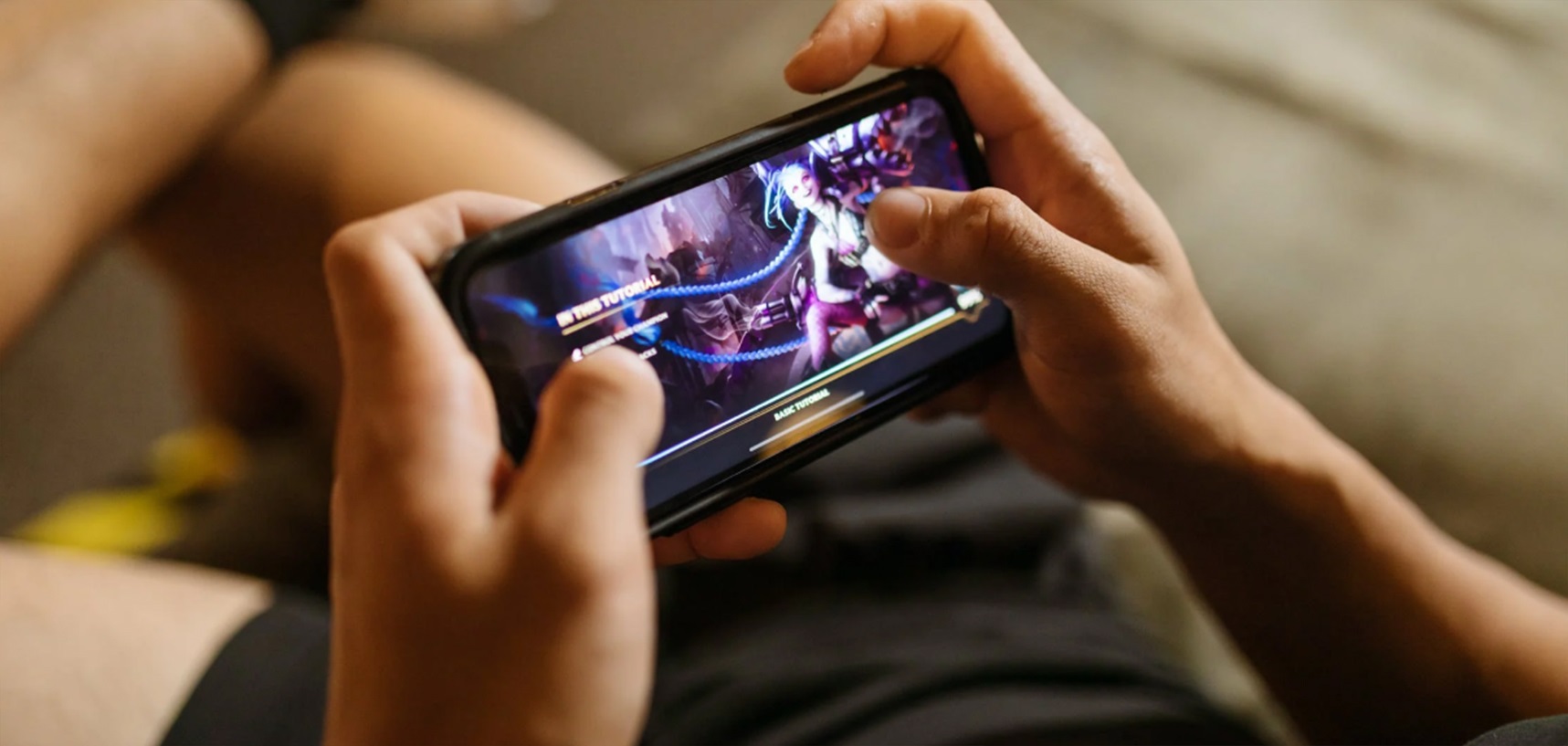
As a gaming enthusiast, you’ve probably faced situations where you wished you could continue playing on the go – whether during your commute or while waiting in line. With Remotly mobile app, you can play even advanced titles like Cyberpunk or The Witcher directly on your phone, provided you have a stable internet connection.
Remotly app supports 10-bit streaming at 120 FPS in 1080p with HDR and offers down to zero-latency in peer-to-peer connections. It’s even compatible with older operating systems like Windows 7, making it perfect for retro gaming. Check it out yourself! If you want to learn more about Game Mode, visit the website: https://remotly.com/tutorials/basics-of-playing-on-android.
8. Travel Without a Computer
Traveling with a computer can be stressful due to the risk of damage, theft, or simply the inconvenience of carrying a bulky device. Remote desktop software eliminates the need to bring your computer on trips.
By leaving your computer securely at home, you can access it from anywhere in the world with the same quality as if you were sitting in front of it. The Remotly app’s security features, including end-to-end encryption (AES-256, RSA-4096, TLS 1.2), protect your data during remote sessions. You can find more information about the security of remote connections here: https://mirillis.com/blog/en/cybersecurity-how-to-select-the-most-secure-remote-desktop-tool/.
9. Share Your Account with Loved Ones
Need remote desktop software for personal use but don’t want to overpay for multiple licenses? Remotly allows you to add additional users to your account at a low cost. Each user can log in with shared credentials and access their remote resources simultaneously.
Soon, Remotly will introduce a “multi-join” feature, enabling multiple users to connect to the same computer and collaborate, whether playing games or watching movies together.

10. Stream Your Home Camera to Monitor Your Pet
Heading out for the weekend and want to check on your pet? Use your laptop or desktop camera to monitor their favorite spot, such as their sleeping area or automatic feeder. Connect to your home computer remotely to view the live feed.
For added security, you can dim the remote PC screen, mute the sound, and lock the keyboard and mouse to prevent unauthorized access. The computer will remain inaccessible to others but fully functional for your remote session. You can find more information and a detailed tutorial here: https://mirillis.com/blog/en/how-to-watch-your-pet-remotely-webcam-streaming/.
11. Monitor Your Home Remotely
If you often travel or have concerns about trusting your nanny or housekeeper, consider using your computer’s built-in camera for home monitoring. Instead of streaming your desktop, switch to the camera view in the Remotly app settings.
Remotly lets you lock the remote PC keyboard and mouse, dim the screen, and mute audio to ensure no one can interfere with your computer during the session. Once you disconnect, the computer automatically locks, preventing unauthorized access.
For more information visit: https://remotly.com/
Author: Mirillis Team